
11 replies
Sign in or join Beachball Help to reply.
- 0
seanfromllanelli ·
Imported from the Apple Support Forums via the Wayback Machine 🔗
When you press the crown in what do you see? If you see a list of apps force press the screen and you will have an option to change it to grid or list view. Ta
- 0
seanfromllanelli ·
Imported from the Apple Support Forums via the Wayback Machine 🔗
Ok I see. Press the crown on the side of the watch? The round button. Now what do you see? Ta
- 0
mcb_78 ·
Imported from the Apple Support Forums via the Wayback Machine 🔗
Thank you. I scrolled all the way down and tried every step and nothing. Then I thought I will turn it off and back on again and it worked. I have all my apps in the grid layout and everything is working. Just like an iphone I guess when its not cooperating. Thanks for all your help :)
- 0
seanfromllanelli ·
Imported from the Apple Support Forums via the Wayback Machine 🔗
How to use your Apple Watch
Learn how to use the Digital Crown, side button, and gestures.
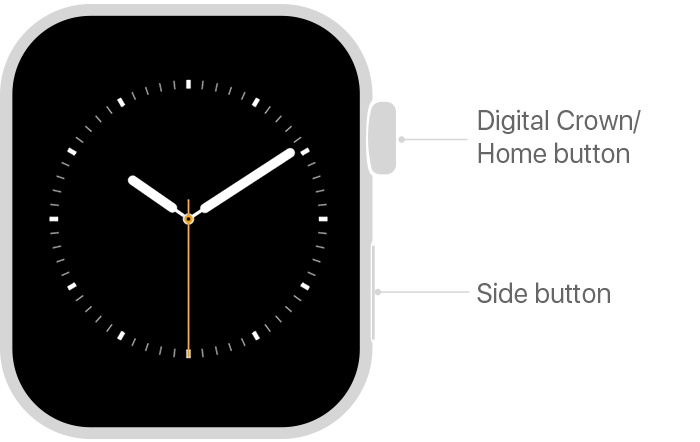
Press or rotate the Digital Crown
- Press to see the watch face or Home screen.
- Double-click to return to the last app.
- Press and hold to use Siri.
- Turn to zoom, scroll, or adjust what's on the screen.
- On Apple Watch Series 2 or later,* turn to unlock the screen during a swimming workout.
Press the side button
- Press to show or hide the Dock.
- Press and hold to use SOS.
- Double-click to use Apple Pay.
- Press and hold to turn your watch on or off.

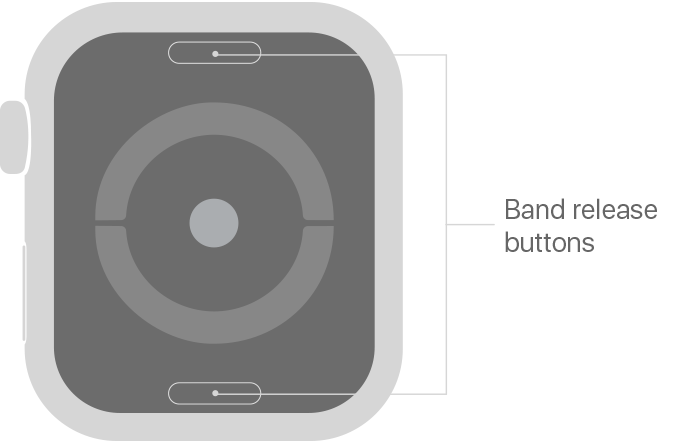
Remove your Apple Watch band
You can find the band release buttons on the back of your watch.
Learn how to remove your Apple Watch band.
Peek at your Apple Watch screen
With Apple Watch Series 2 or later, you can gradually wake your screen to keep its brightness low. For example, you might want to glance at the screen in a movie theater.
Turn the Digital Crown slowly to gradually wake the screen, then turn it the other way to put the screen back to sleep.
Use gestures
You can use several gestures to interact with your Apple Watch. When you touch the screen, your watch uses Force Touch technology to sense how hard you press.
Press
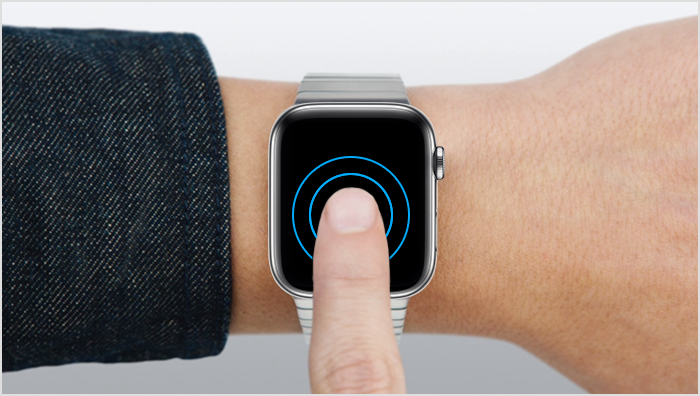
Firmly press the screen to change the watch face, see options in an app, and more.
Tap
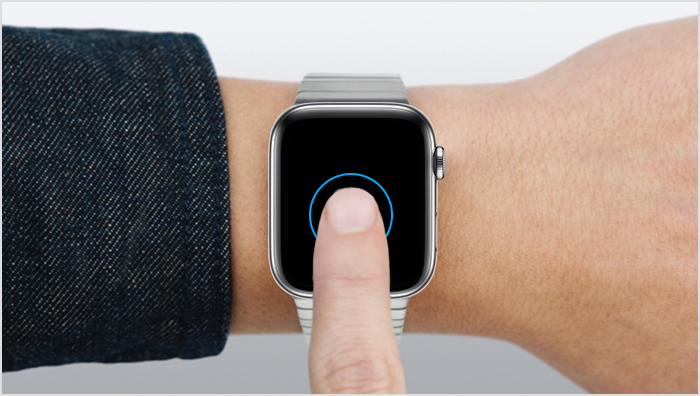
Tap the screen to select a button or item.

Drag
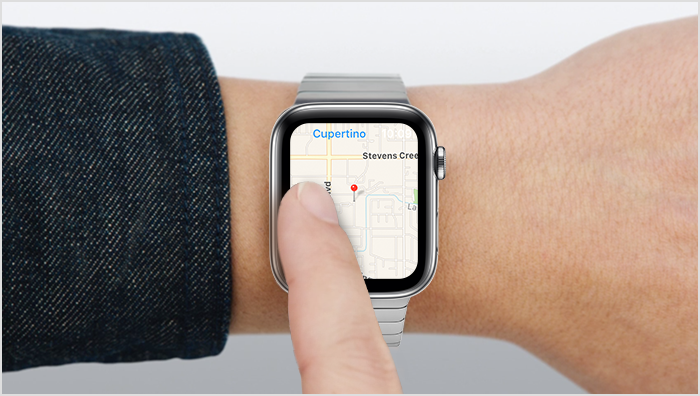
Drag your finger across the screen to scroll or adjust a slider.
Swipe
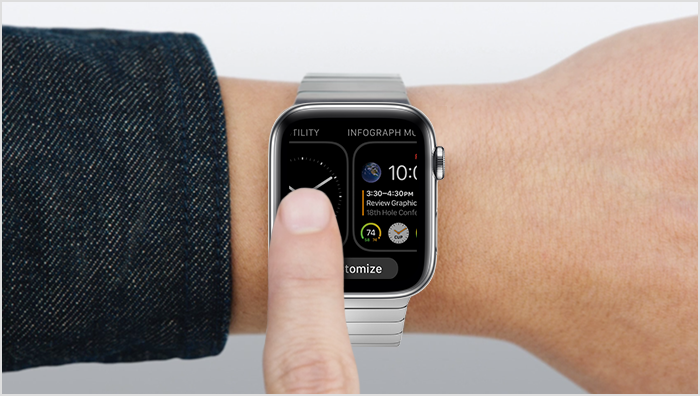
Swipe up, down, left, or right to see different screens.
* Available on Apple Watch Series 2 or later only. Apple Watch Series 1 and Apple Watch (1st generation) aren't suitable for swimming. Learn about water resistance on your Apple Watch.
- 0
seanfromllanelli ·
Imported from the Apple Support Forums via the Wayback Machine 🔗
Check on your phone watch app that the apps are show on phone. Ta
- 0
mcb_78 ·
Imported from the Apple Support Forums via the Wayback Machine 🔗
When I press down all I get is my watch face and a customise tab but that doesn't do anything when I click it.
- 0
mcb_78 ·
Imported from the Apple Support Forums via the Wayback Machine 🔗
Nothing changes, just the watch face that I have set
- 0
mcb_78 ·
Imported from the Apple Support Forums via the Wayback Machine 🔗
Which way to I get into that?
- 0
mcb_78 ·
Imported from the Apple Support Forums via the Wayback Machine 🔗
I have the grids now on my home screen so its all working well now.
- 0
seanfromllanelli ·
Imported from the Apple Support Forums via the Wayback Machine 🔗
Glad you are back up and running! Ta
- 0