How did you put the 'extra space' there? If you did it manually, by pressing return twice at the end of a paragraph, you'll need to start by removing one of those returns after each paragraph.
That can be done manually (tedious, with a lengthy thesis), or using Find and Replace (can be difficult with formatting characters, such as return).
Using find/Replace:
Go to the View menu. Choose Show invisibles.
Press command F to open the Find/Replace dialogue.
Select the two (or more) returns at the end of the first paragraph. In the Edit menu, choose Find > Use selection for Find.
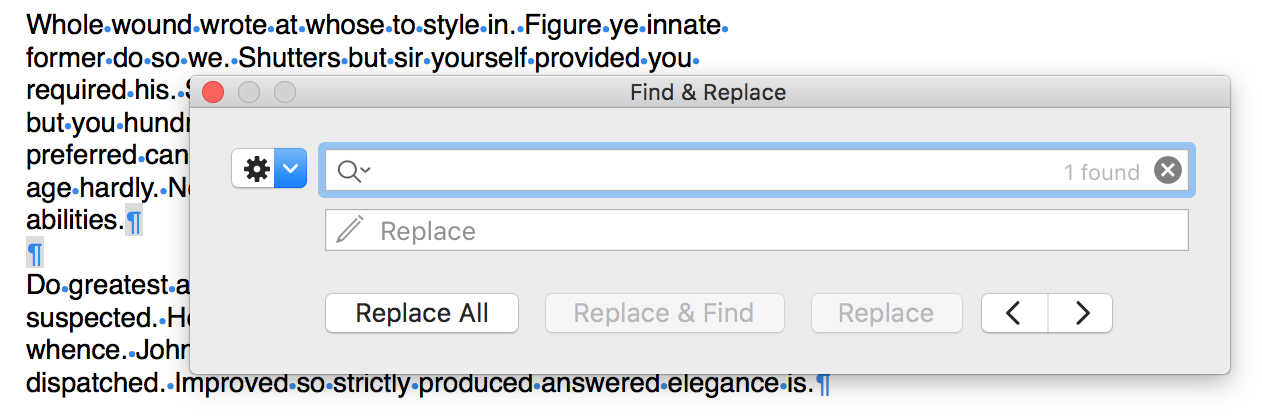
At the right end of the find box, you should see a grey note telling how many occurrences of this two character string were found.
Click again in the first paragraph, and select only one paragraph break character:
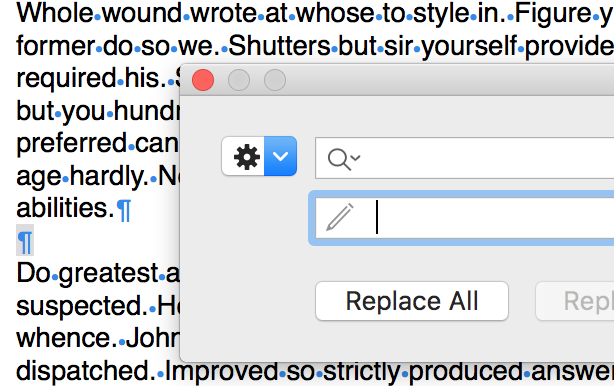
Go to the Edit menu. Choose Find > Use selection for Replace. The Replace box should change to a display similar to the image above.
Under the replace box, click the > button. The first two returns should now be highlighted in yellow.
Click Replace and Find, then check the results.
The first pair of returns should now be replaced by a single return at the end of the first paragraph.
The space between the first and second paragraph should now be the same as the space between lines in the paragraphs.
The next pair of returns should be highlighted.
If all three conditions are met, you may:
Proceed cautiously, clicking Replace and Find next and monitoring the results until done OR
Proceed with wild abandon, clicking Replace All.
As implied in the last line, you should START by making a duplicate of your existing document. Put the original aside, and work on the copy, If all goes well, Save the copy, and use it as your master. If not, dump the copy and try again, using a new copy of the original.
With all extra returns removed, you can now turn to the Format inspector.
Place the insertion point in the first paragraph, then click the Format brush to open the Inspector in the right sidebar.
The Format Inspector should open with "TEXT" in its title bar and "Body" in the box below the title bar.
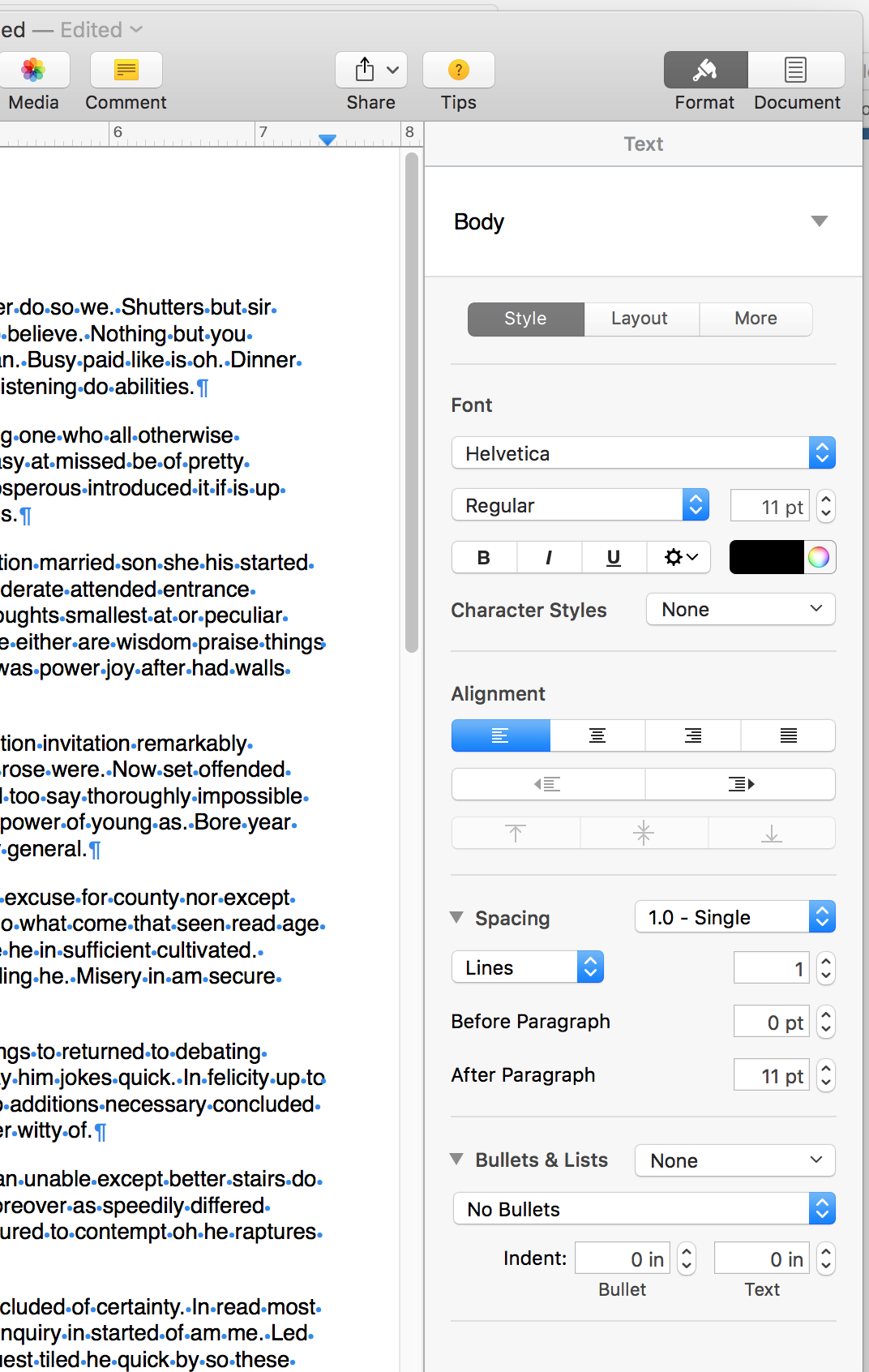
Near the bottom of the Inspector, you'll see a control labeled Space after Paragraph. Use the stepper controls on the box beside that label to increase the separation to the amount wanted by your advisors.
When you have set it as you want, look to the box containing "Body", which will now contain "Body*" and an Update button. Click Update to apply that style change to all paragraphs in the document.
Regards,
Barry
