Imported from the Apple Support Forums via the Wayback Machine 🔗
Hi,
I need some advice on how to save an A0-size poster as a PDF via Mac OS X native "Save as PDF" feature. Do I need to set up a dedicated printer supporting large page formats? If yes, what printer driver would you recommend?
Imported from the Apple Support Forums via the Wayback Machine 🔗
Hi Dario
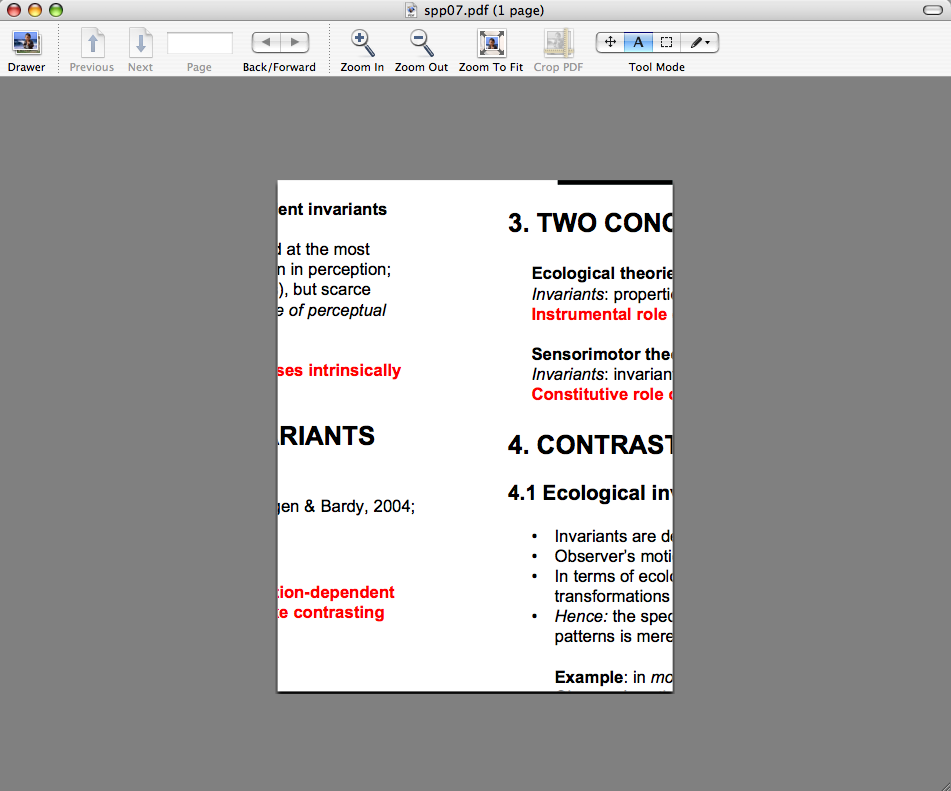
You can save a poster size image or document as a .pdf. It isn't limited to A4. It simply means that saving an A0 as a .pdf would be one very large document displayed in Preview and you would only see a corner of it at full size but all of it would be there; all 84.1 cm X 118.9 cm.
As for printing it, obviously that is solely determined by the maximum size of the paper capable of the printer.
If I am missing something please post again.
regards roam
0
Dartar·
Imported from the Apple Support Forums via the Wayback Machine 🔗
Hi roam,
thanks for the prompt reply. When I save my poster (the original is a PowerPoint file) as a PDF, I obtain an A4-size PDF with only a small portion of my poster.
Imported from the Apple Support Forums via the Wayback Machine 🔗
Hi Dario
For Preview version 2.1.0 (Panther 10.3.9)
In *Preview Preferences*, try these settings as they work for me with an A0 showing at full size on one page.
Images tab
Default Image scale set to *Actual size*
select: Respect Image DPI for Actual size
select: Scale down large Images to fit printed page
PDF tab
Use Scale of 100%
regards roam
0
Dartar·
Imported from the Apple Support Forums via the Wayback Machine 🔗
Hi roam,
since the parent application from which I'm printing is MS PowerPoint changing the Preview settings didn't work. I double checked the page layout properties under PowerPoint and discovered that I had to set page size to A0 under Page Layout > Options > Page attributes, so now my problem is solved.
Thank you very much for the real-time support 🙂
Dario
Message was edited by: Dartar
0
roam·
Imported from the Apple Support Forums via the Wayback Machine 🔗