
1 reply
Sign in or join Beachball Help to reply.
- 0
SravanKrA ·
Imported from the Apple Support Forums via the Wayback Machine 🔗
Change your Apple ID country or region
If you move to a new country or region, go to your Apple ID account page, Account Info, or Settings to change your Apple ID information. Make sure to have a payment method for your new country or region on hand.
When you change your billing address from your Apple ID account page or through the App Store or iTunes Store, it updates your billing address for all of the Apple services with which you use the same Apple ID.
What to do before changing your country or region
- Spend any store credit remaining on your Apple ID. You must also wait for any pending store credit refunds to process before you can change your country or region. Learn what to do if your remaining store credit is less than the cost of a single item.
- Cancel any subscriptions, including Apple Music, and wait until the end of the subscription period to change your country or region. You'll also have to wait for any memberships, pre-orders, iTunes movie rentals, or Season Passes to complete.
- Have a payment method for your new country or region on hand. For example, German credit cards can be used to buy content from only the German App Store, iTunes Store, or Apple Books.
- Back up your iPhone, iPad, or iPod touch to iTunes. You might need to temporarily downgrade your iCloud storage until you switch to the new country or region. You won't lose any iCloud data in the process. After you change your account to a new country or region, re-enroll in a new storage plan to continue using iCloud storage.
Some of your previous purchases (apps, music, movies, TV shows, books, etc.) might not be available in your new country or region. Certain types of purchases or content aren't available at all in some countries or regions.
To make sure that you can access your previous purchases in your new country or region, redownload your previous purchases on every device on which you might want to view the purchase before you change your country or region.
If you're a part of a Family Sharing group, you might not be able to change your country or region. Learn how to leave a Family Sharing group.
On your iPhone, iPad, or iPod touch
- On your device, tap Settings > [your name] > iTunes & App Store.
- Tap your Apple ID, then tap View Apple ID. You might be asked to sign in.
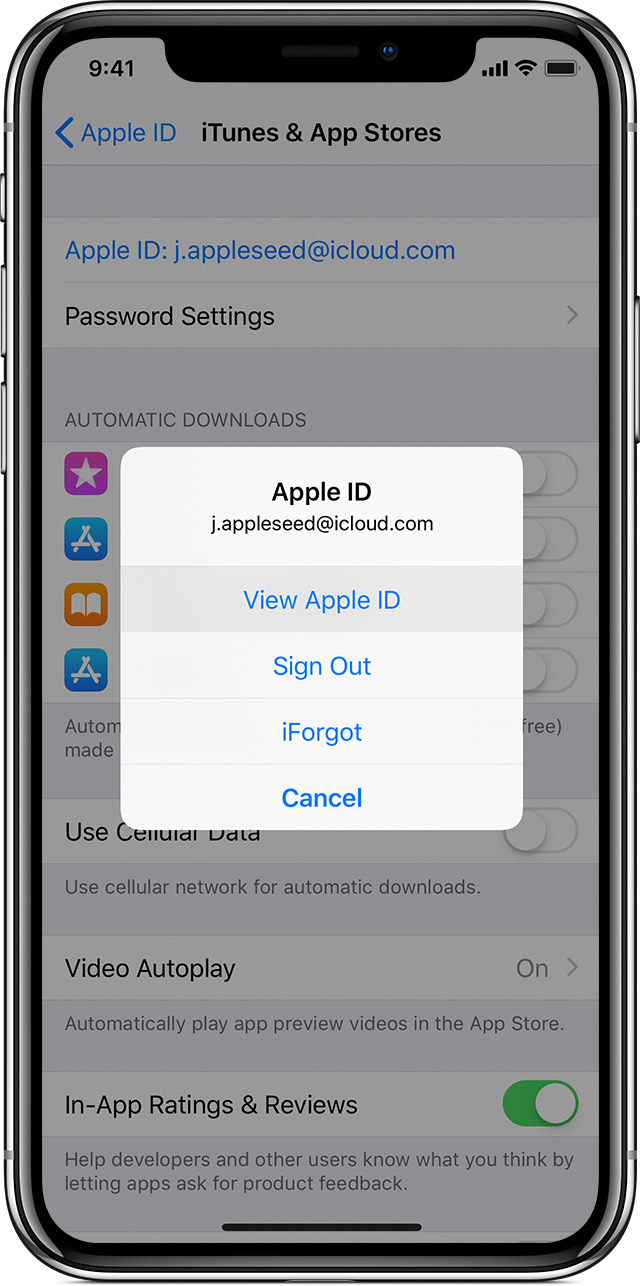
- Tap Country/Region, then tap "Change Country or Region."
- Tap your new country or region, then review the Terms & Conditions.
- Tap Agree in the upper-right corner, then tap Agree again to confirm.
- Select a payment method and enter your new payment information and billing address, then tap Next. You have to enter a valid payment method for your new country or region.1 Learn more about how to change or remove your Apple ID payment information.
Your Apple ID country or region updates for all of your Apple services on all of your Apple products.

From your Apple ID account page
- Sign in to your Apple ID account page.
- Scroll to the Account section, then click Edit.
- From the Country/Region menu, select your new country or region.
- When asked if you want to change your country or region, click "Continue to update."
- Enter your new payment information and your billing address, then click Save. You have to enter a valid payment method for your new country or region.1 Learn more about how to change or remove your Apple ID payment information.
Your Apple ID country or region updates for all of your Apple services on all of your Apple products.