
1 reply
Sign in or join Beachball Help to reply.
- 0
SravanKrA ·
Imported from the Apple Support Forums via the Wayback Machine 🔗
There are mainly three ways you can do it.
- Use AirDrop
- Use Import on Photos App in Mac
- Use Image Capture
Share content with AirDrop
Use AirDrop to share content from apps like Photos, Safari, Contacts, and more. Here's how:
- Open an app, tap Share or
 . If you share a photo from the Photos app, you can swipe left or right and select multiple photos.
- Tap the AirDrop user that you want to share content with. Or you can AirDrop content between your own Apple devices. Don’t see the AirDrop user or your other device? Learn what to do.
Importing New Pictures into Photos App with the Import Menu
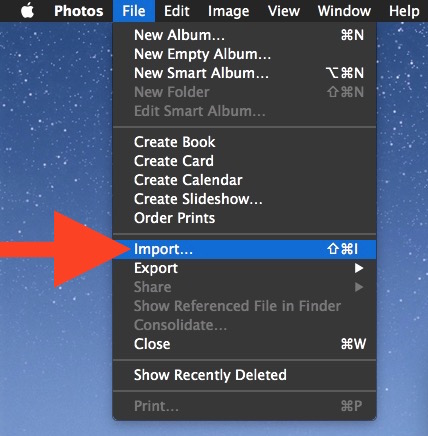
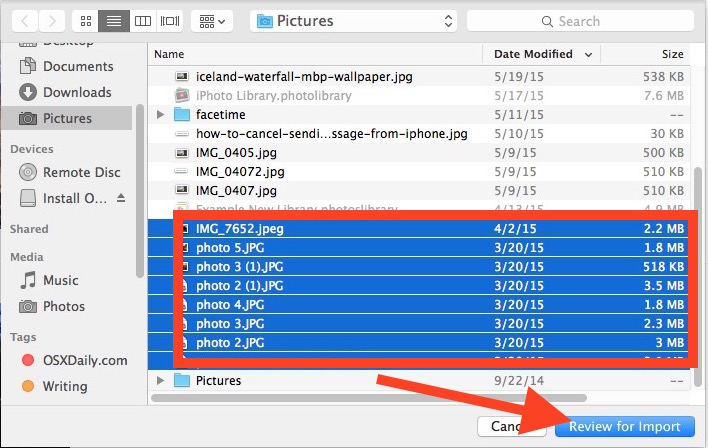
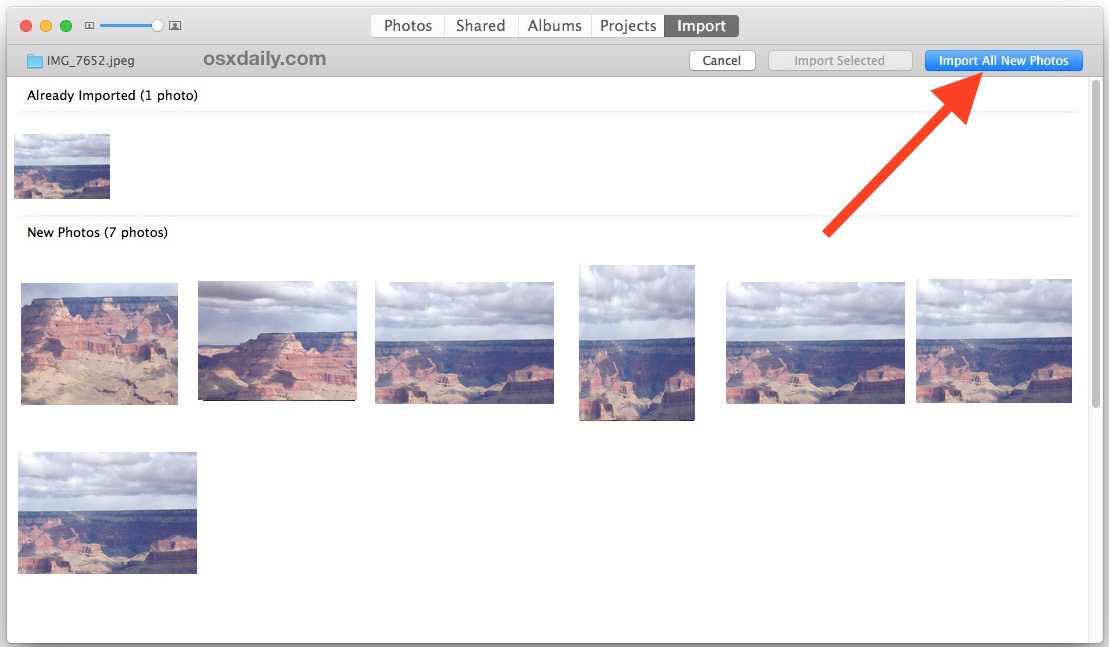
Perhaps the easiest option to bring new pictures into the Photos app in OS X is to simply use the File menu Import option. You can use this to access any image files contained within the file system of OS X, whether the pictures are in a folder or several, on an external hard drive, a mounted memory card, or anything else accessible by the Mac Finder. Here’s all you need to do:
- Open Photos app and pull down the File menu, then choose “Import…”
- Navigate to and select the picture(s) you wish to import into Photos app, then click on “Review for Import”
- Choose “Import All New Photos” to bring all selected images into the Photos app (Optionally: you can select and deselect images into the review screen to narrow down the image import)
Importing using Image Capture (Refer Thee Self explanatory Pics below)
Although storing files outside your Photos library is a great way to save space on your Mac, be aware that:
- If you use iCloud Photos, photos and videos that are outside the Photos library aren’t stored in iCloud and won’t be accessible to any other Mac or device that uses iCloud Photos.
- If you disconnect the device where the files are located, or move or rename the files in the Finder, Photos won’t be able to locate them.