Benches / iPhone
1
Iphone to attach picture as attachment
apple Verified ·
Imported from the Apple Support Forums via the Wayback Machine 🔗
I want my iPhone to send picture as attachment not embedded to email
The phone is a Iphone5 also that hasn't been updated
1 reply
Sign in or join Beachball Help to reply.
0
seanfromllanelli ·
Imported from the Apple Support Forums via the Wayback Machine 🔗
How to send attachments in Mail on your iPhone, iPad, and iPod touch
With Mail, you can add attachments, photos, videos, and even drawings to your emails.
Learn how to add attachments from the Files app and photos and videos from the Photos app.
Add an attachment
- Open Mail and tap
 or open an existing email. Then tap the body of the email.
- Tap the cursor to open the editing menu.
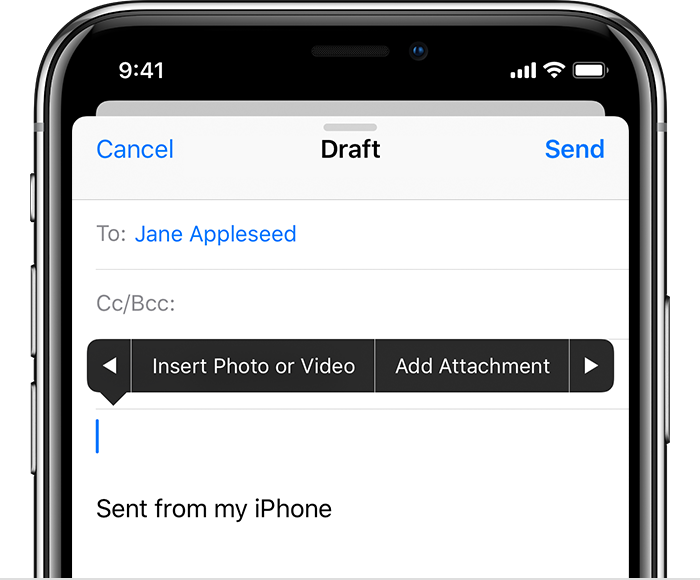
- Tap
 , then tap Add Attachment. On an iPad, you can also tap
 on the keyboard instead of the cursor.
- Look through the Files app and select an attachment.
- When you're ready, tap Send. Or follow these steps again to add another attachment.

Add a photo or video
- Open Mail and tap or open an existing email. Then tap the body of the email.
- Tap the cursor to open the editing menu.
- Tap , then tap Insert Photo or Video. On an iPad, you can also tap
 instead of the cursor, then select a photo or video from Photos. Then tap Choose.
- When you're ready, tap Send. Or follow these steps again to add another attachment.
Insert a drawing
- Open Mail and tap or open an existing email. Then tap the body of the email.
- Tap the cursor to open the editing menu.
- Tap until you see Insert Drawing.
- Sketch an image with your finger. If you have an iPad Pro, you can sketch with an Apple Pencil.
- When you're ready, tap Done, then tap Insert Drawing. You can also tap Discard Changes to go back to your email without inserting the drawing.
After you add an attachment or photo, you can use Markup to add drawings, text, signatures, and more to your attachments and photos.
