
1 reply
Sign in or join Beachball Help to reply.
- 0
SravanKrA ·
Imported from the Apple Support Forums via the Wayback Machine 🔗
If you see No Service or Searching on your iPhone or iPad
If you see No Service or Searching on your iPhone or iPad (Wi-Fi + Cellular), or can't connect to a cellular network or cellular data, follow these steps:
Check your coverage area
Make sure that you're in an area with cellular network coverage. Then follow these steps:
- To turn cellular data on or off, go to Settings, then tap Cellular or Mobile Data. If you're using your iPad, you might see Settings > Cellular Data.
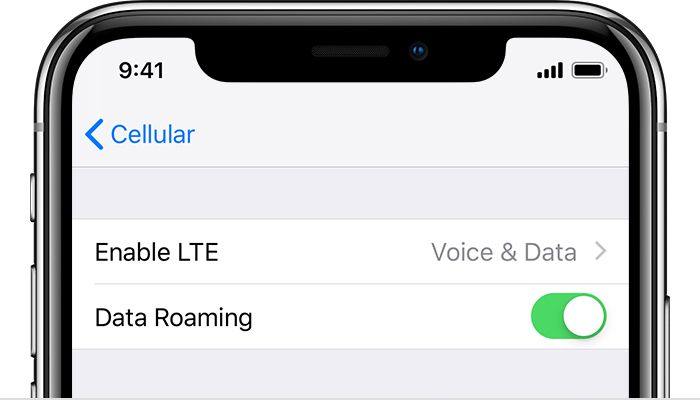
- If you're traveling internationally, make sure that your device is set up for data roaming. Go to Settings > Cellular > Cellular Data Options > Data Roaming.
Restart your iPhone or iPad
Restart your device. If you're not sure how to do this, follow these steps.

Check for a Carrier Settings update
To manually check for and install a carrier settings update:
- Make sure that your device is connected to a Wi-Fi or cellular network.
- Tap Settings > General > About. If an update is available, you'll see an option to update your carrier settings.
- To see the version of carrier settings on your device, tap Settings > General > About and look next to Carrier.
If you insert a new SIM card into your iPhone or iPad, you need to download the carrier settings for your new carrier.
Take out the SIM card
After removing the SIM card, put it back in. You might need to contact your carrier:
- If the SIM card is damaged, or doesn't fit in the SIM tray, ask your carrier for a new SIM card.
- If you transferred your SIM card from another device, ask your carrier if your SIM card works with your iPhone or iPad.
If you see No Service or Searching on your iPhone or iPad - Apple ...